|
MyGaDOE |
Version 1.0 |
To compose a new message, complete the following steps:
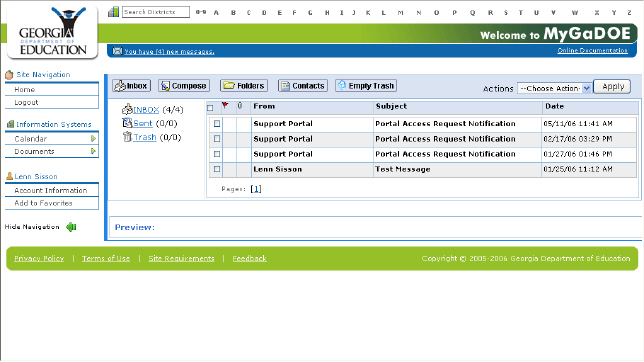
From the Messaging page (click here for accessing Messaging info), locate the Compose button, as shown below.
The Messaging Main Page
Click the Compose button. The Compose Message page displays, as shown below.

The Compose Ne Message page
Click the Address Book button near the top right of the page. The Address Book displays in a new window, as shown below.
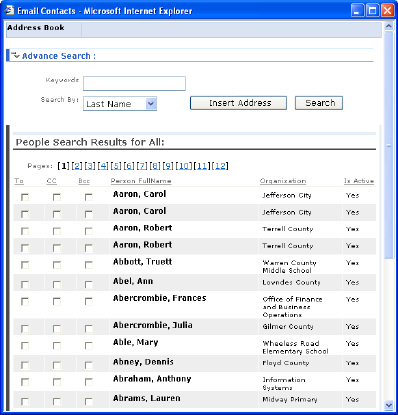
The Address Book page
Select the person or people to whom to send the message and insert them in the appropriate fields. Click here for instructions about selecting message recipients.
Click inside the Subject field and enter a subject for the message. The subject displays in the field, as shown below.

The Subject field, with an example subject entered
Click inside the message field and enter the message you want to send. The message displays in the field as shown below. You can use the buttons at the top of the field to format the text, add numbering and bullets, check the spelling of your message, etc.
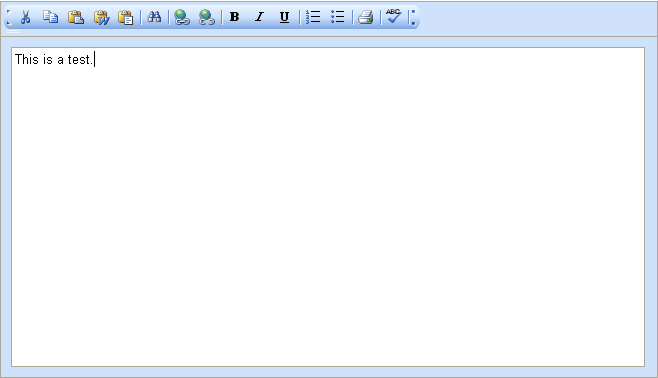
The subject field showing a sample message
When finished typing your message, click the "Send" button near the bottom of the page. The message is sent.
Note: To save the message and return to it later, click "Save As Draft" button.
This completes the compose a new message process.